Code Snippets
Code snippets let you weave your own AFL into the generated formulas — helper functions, extra plots, custom parameters or anything the templates don't cover. They are stored under Global Code in the tree and added from Add → Code. Snippets are entirely optional.
Adding a code snippet
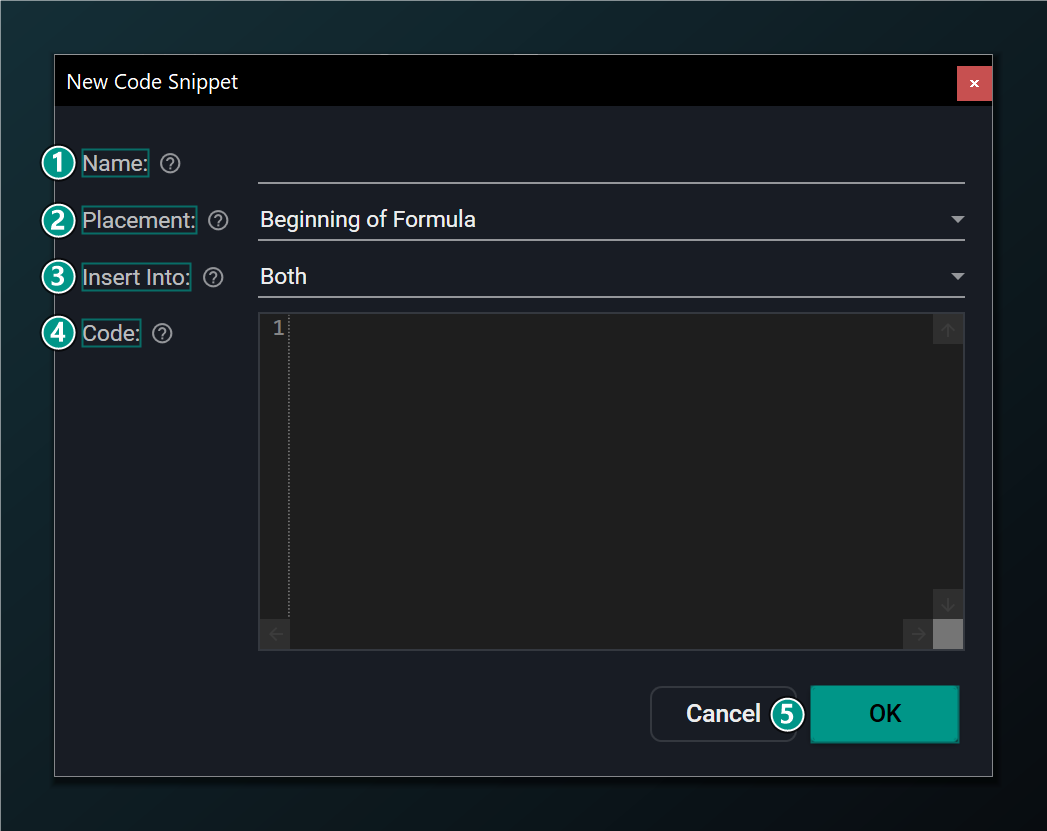
- Name — a label for this reusable code block.
- Placement — where the code goes: Function (top-level helper), Beginning (before inputs) or End (after outputs/plot).
- Insert Into — which generated formula gets this code: Training only, Indicator only, or Both. Walk-Forward always uses Both.
- Code — custom AFL inserted verbatim at the chosen spot (helper functions, extra plots, parameters). May be left blank.
- OK — add this code snippet to Global Code.
Placement and target
Two settings decide exactly where your AFL lands in the generated output:
| Setting | Options |
|---|---|
| Placement | Function — a top-level helper, emitted above the main code. Beginning — before the inputs are computed. End — after the outputs and plotting. |
| Insert Into | Training only, Indicator only, or Both formulas. |
A Walk-Forward network produces a single formula, so the Insert Into choice does not split there — Walk-Forward always inserts the snippet into that one formula (the equivalent of "Both").
Use Function placement for reusable helpers you call from your input or output AFL, and End placement to add extra plots or trading logic that consume the network's prediction in the indicator formula.
Editing a code snippet
Reopen a snippet from Global Code to change any of its settings. The Edit dialog mirrors the Add dialog with an Update button.
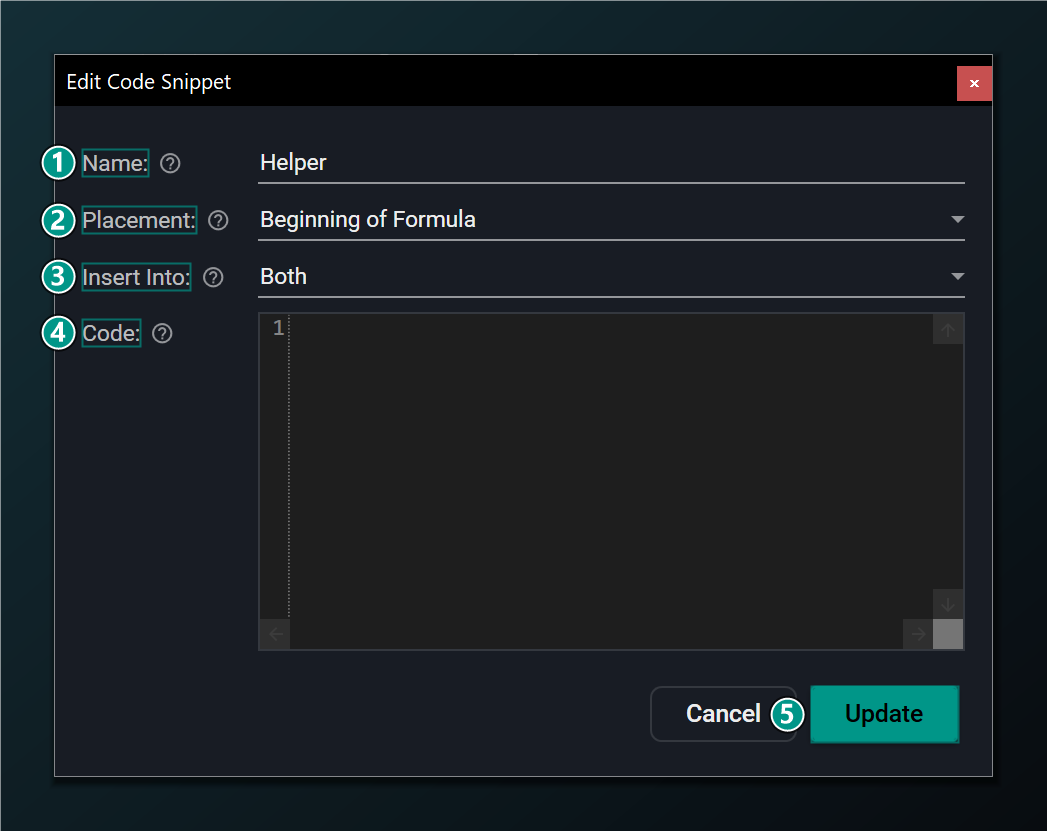
- Name — rename this code block.
- Placement — Function, Beginning or End.
- Insert Into — Training only, Indicator only, or Both. Walk-Forward always uses Both.
- Code — custom AFL inserted verbatim at the chosen spot. May be left blank.
- Update — save the changes to this code snippet.