Inputs
Inputs are what the network learns from — the indicators or price series presented to it at each bar. They are also where you do your most important creative work: a network can only find a relationship that genuinely exists in the numbers you give it (garbage in, garbage out), so the quality of your inputs sets the ceiling on everything else. You add them from the Add → Input action. A network needs at least two inputs to be valid.
What makes a good input
Hand the network things you'd genuinely glance at to read a chart, expressed as numbers: momentum (RSI, ROC), trend (the slope of an EMA, MACD), volatility (ATR), volume behaviour, the distance of price from a moving average. Favour a few well-chosen, non-redundant inputs over a dozen overlapping ones — every extra input adds capacity to memorise noise. And prefer inputs that mean the same thing across time and across symbols, which is exactly what percent change buys you below.
Adding an input
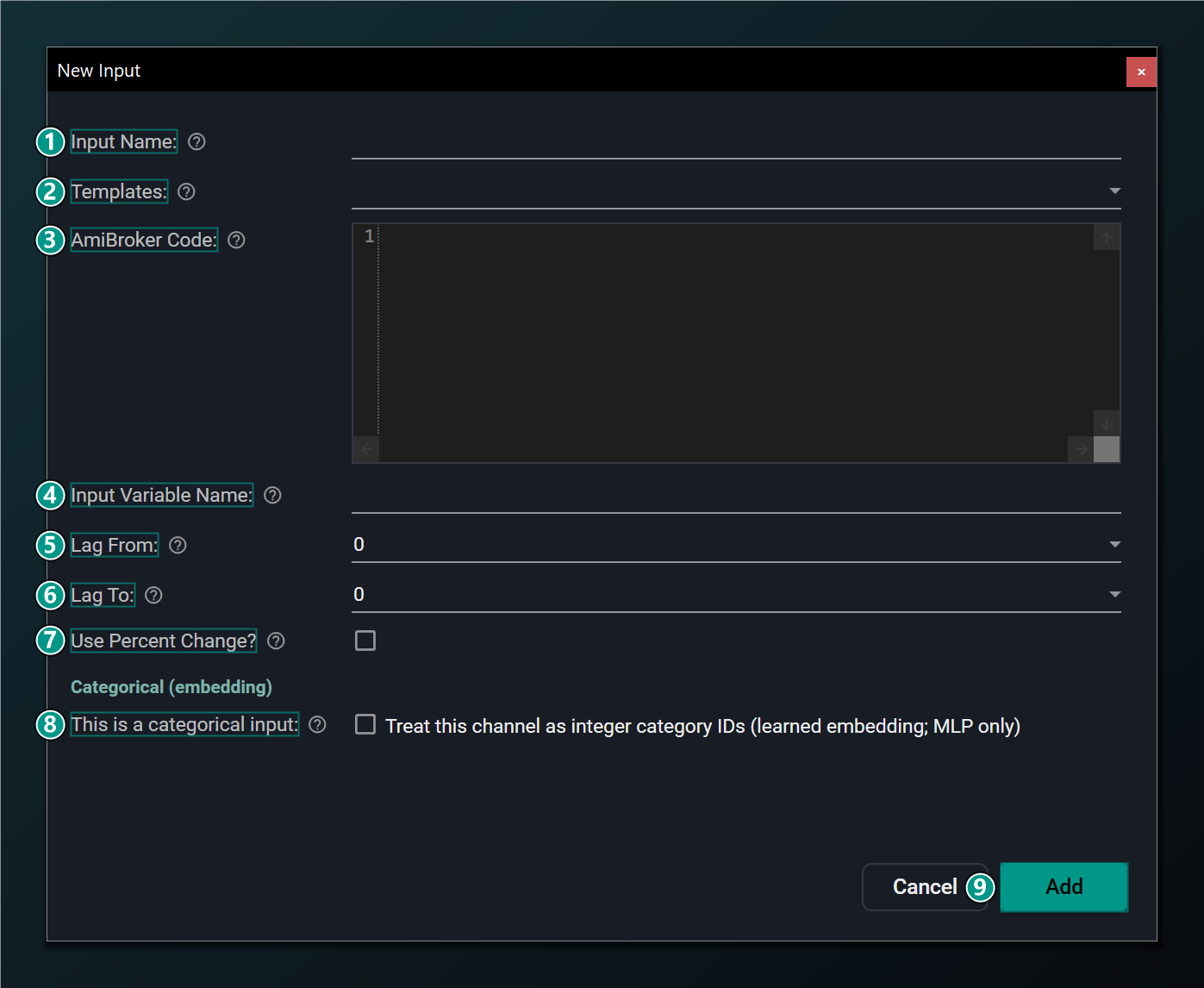
- Input Name — a label for this input in the tree.
- Templates — starter presets (EMA, RSI, MACD, raw OHLC). Picking one fills the name, code, variable and %-change.
- AmiBroker Code — AFL that computes this input and stores it in the variable below. Leave blank to use a built-in like
Close. - Input Variable Name — the AFL variable holding this input's value (from the code above).
- Lag From — earliest past bar to feed in. 0 = current bar. Each lag step adds one network input.
- Lag To — latest past bar to feed in. Lag 0 to 4 sends 5 values (now + 4 prior bars).
- Use Percent Change — feed the bar-to-bar % change instead of the raw value (good for prices/levels).
- This is a categorical input — tick to treat this channel as integer category IDs (a learned embedding). Reveals the categories / embedding-dimension fields. MLP only; disables AFL export.
- Add — add this input to the network.
Lag: giving the network recent history
A plain Feed-Forward network sees each bar in isolation — it has no memory of yesterday. Lag fixes that by also feeding in the value from previous bars, so the network can react to change, not just today's snapshot. Lag From is the earliest past bar, Lag To the latest, and every step in between becomes its own network input (each in the range 0–20, with Lag To ≥ Lag From).
So Lag 0–4 on an RSI presents the network with five numbers: today's RSI plus the four prior bars' — a short rolling history of how RSI has been moving. That's how a memory-less MLP gets a sense of momentum and direction.
Lag expands one indicator into several inputs — one per bar in the lag range. Lag 0–4 presents the current value plus the four previous bars, giving the network a short history to work with. Each lag step counts as a separate network input.
Lag multiplies your input count, and input count is capacity. Three indicators each lagged 0–9 is thirty inputs — plenty of room to overfit. Add lag deliberately, and lean on the Accuracy tab to keep a wide network honest. If you want genuine sequence memory instead, consider a sequence model (LSTM, GRU, TCN or Transformer).
Use Percent Change: the stationarity habit
This little checkbox is one of the highest-leverage choices in the whole Wizard. A network learns best when an input means the same thing throughout history. Raw price fails that test badly: a stock at $5 a decade ago and $300 today never sits in a stable range, so a pattern the network learns at $5 is meaningless at $300. The fancy word for "stays in a steady range over time" is stationarity, and prices are famously non-stationary.
Feeding the bar-to-bar percent change instead solves it. A 2% move is a 2% move whether the stock is $5 or $300, and whether it's 2014 or today — so the input keeps a roughly constant range across the entire history and across different symbols. That's what lets a single network trained on a pool of tickers generalise. Turn it on for any price-like input (raw OHLC, moving averages); already-bounded oscillators like RSI are fine left as-is.
For price-like inputs (moving averages, raw OHLC), turn on Use Percent Change. Feeding the bar-to-bar percentage change rather than the absolute price gives the network a stationary, scale-free signal that generalises far better across symbols and time.
Categorical (embedding) inputs
Most inputs are numbers the network reads on a continuous scale. Some signals aren't numbers at all, though — they're labels: the day of the week, a regime id, which sector a symbol is in. Feeding a label as a number is misleading (Friday isn't "five times" Monday), so the Wizard offers a dedicated path for them.
Tick This is a categorical input and the channel switches from a number to an integer category id. Instead of scaling the value, the MLP learns its own little vector — an embedding — for each category, and discovers from the data which categories behave alike. This is the same trick modern models use for words and product ids, applied to your labels. Ticking the box reveals two fields:
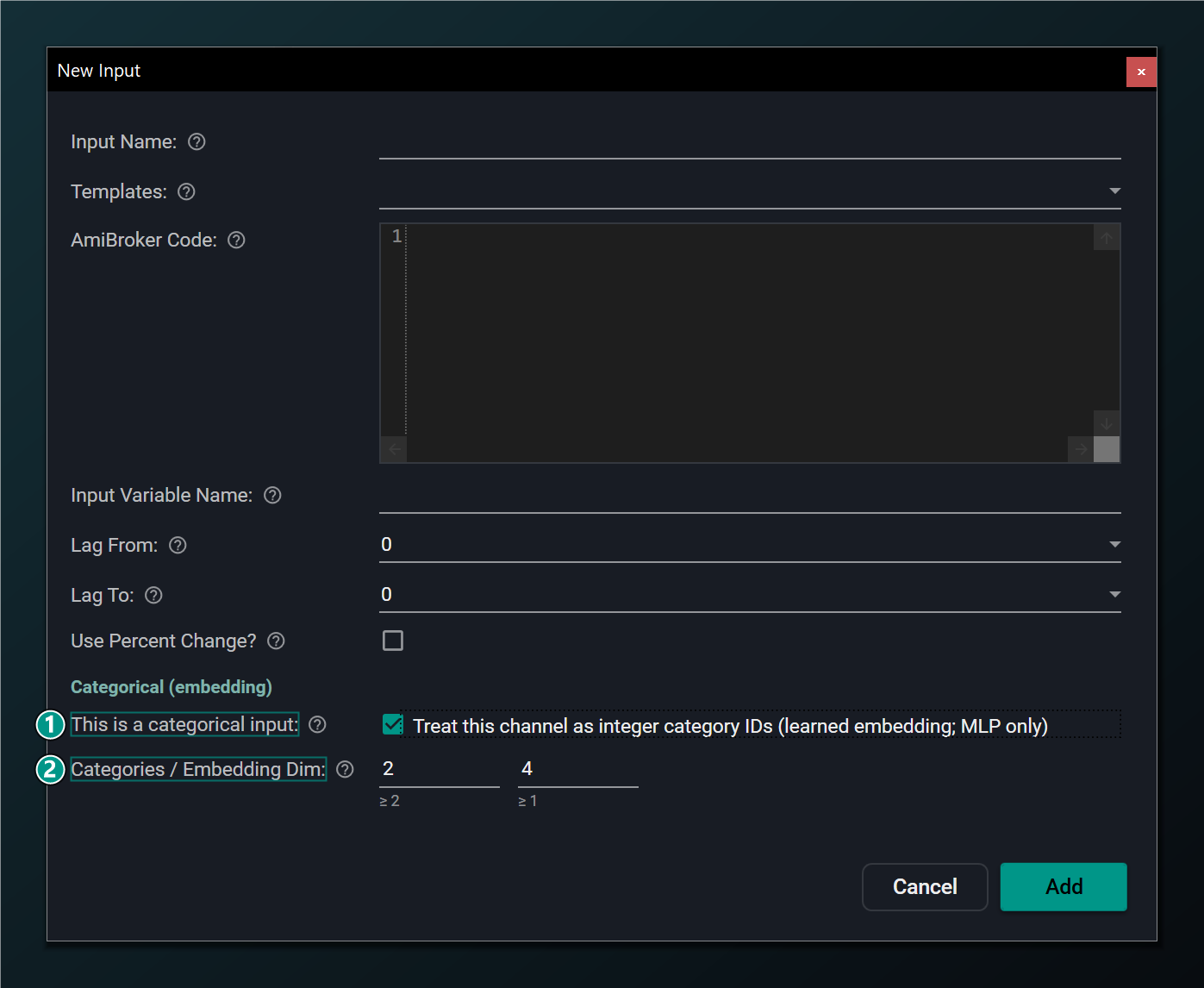
- This is a categorical input (ticked) — the channel now carries integer category IDs (0 to N−1) and the MLP learns an embedding vector per ID. The channel bypasses input scaling; it must be a single lag (Lag From = Lag To) with percent-change off.
- Categories / Embedding Dim — the number of categories the channel can take (left box, ≥ 2) and the size of the learned embedding vector per category (right box, ≥ 1).
Your AFL code must hand this channel an integer in the range 0 to N−1, where N is Categories. Embedding Dimension is how much room each category gets to express itself: 1 or 2 is plenty for a handful of categories, a little more for many. A larger embedding holds more per-category detail but adds parameters.
A categorical input is MLP only and must be a single lag (Lag From = Lag To) with Use Percent Change left off — a label has no bar-to-bar percentage and isn't a series to lag. Using one disables network-to-AFL export; the on-chart formulas are unaffected.
Using a template
Templates are ready-made inputs. Selecting one fills in the name, AFL code, variable name and percent-change setting so you don't have to write the AFL yourself.
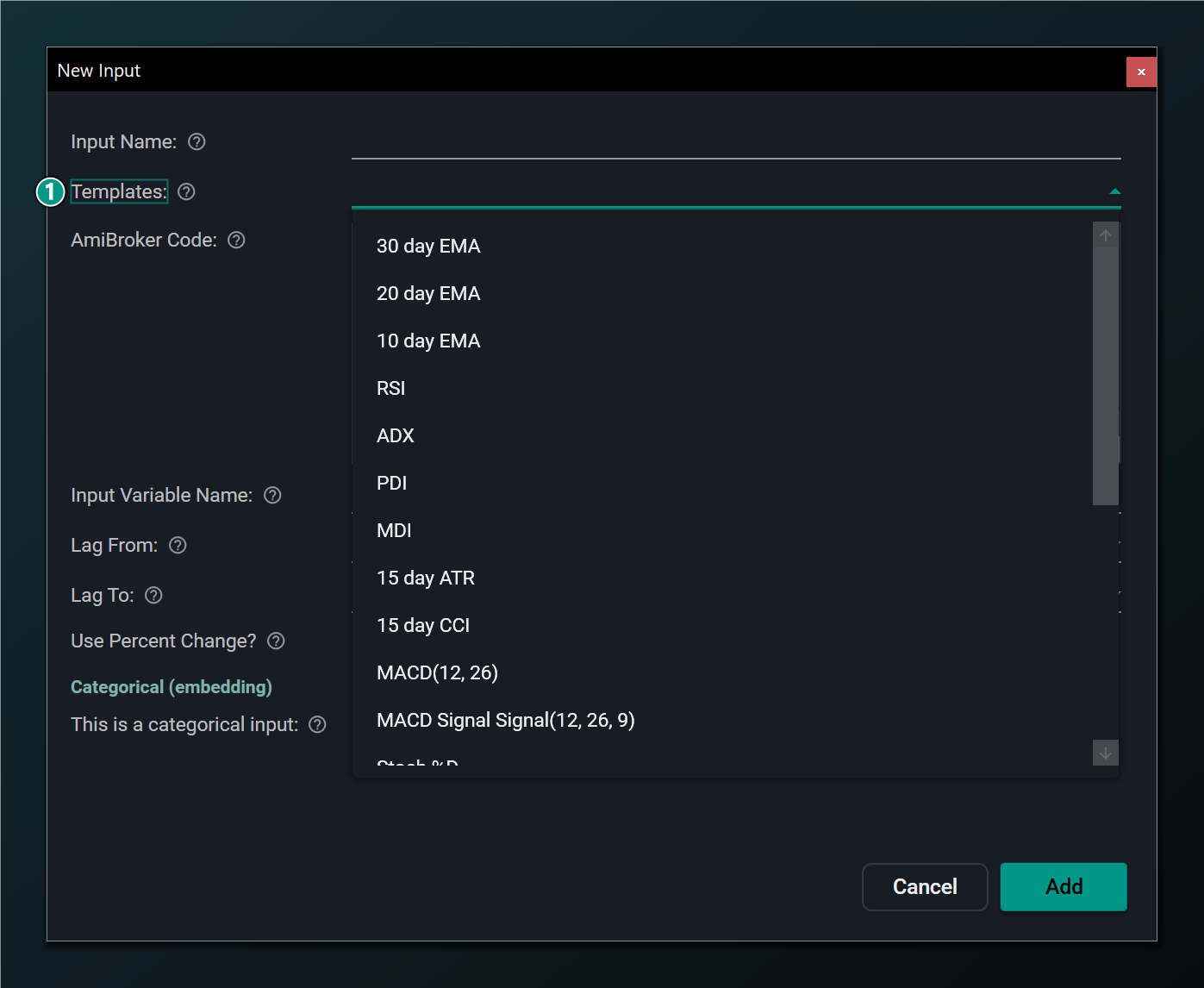
- Templates list — ready-made inputs; selecting one fills the name, code, variable and percent-change settings.
Editing an input
Reopen any input from the tree to rename it or change its lag and variable. The Edit dialog mirrors the Add dialog, with an Update button in place of Add.
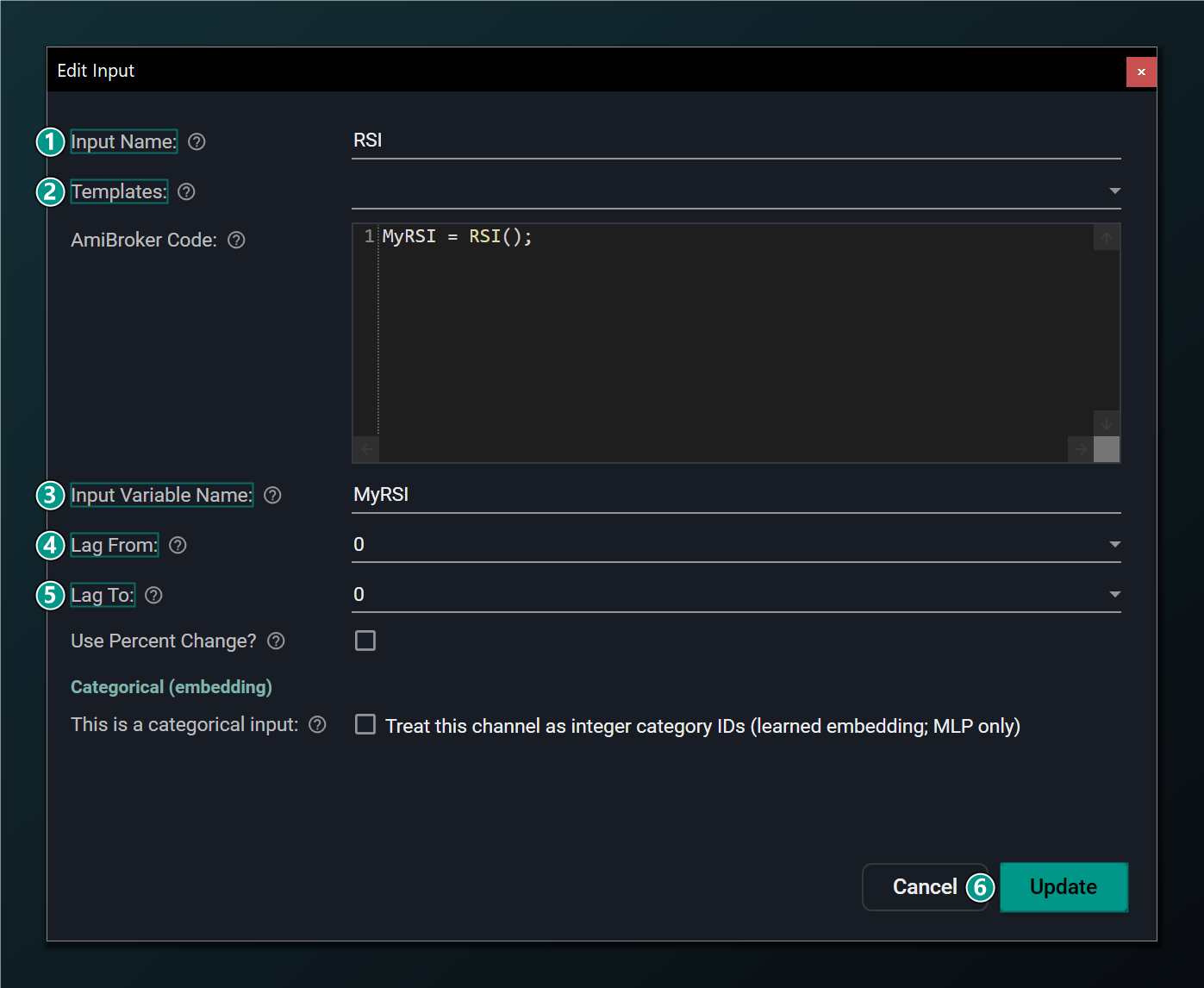
- Input Name — rename the input.
- Templates — re-apply a preset (overwrites the fields below).
- Input Variable Name — the AFL variable holding this input's value.
- Lag From — earliest past bar to feed in (0 = current bar).
- Lag To — latest past bar to feed in (must be ≥ Lag From).
- This is a categorical input — treat this channel as integer category IDs with a learned embedding (MLP only); reveals the categories / embedding-dimension fields. See above.
- Update — save the changes to this input.
Re-applying a Template in the Edit dialog overwrites the fields below it — including any custom AFL you had entered. Use it only when you want to start that input over from the preset.